 MyFileHub
1. Check the Recycle Bin
- Open the Recycle Bin from the desktop (or type Recycle Bin in the File Explorer address bar).
- Switch to Details view and sort by Date deleted, or use the search box if you remember the name.
- Right-click the file and choose Restore. It goes back to the folder it was deleted from.
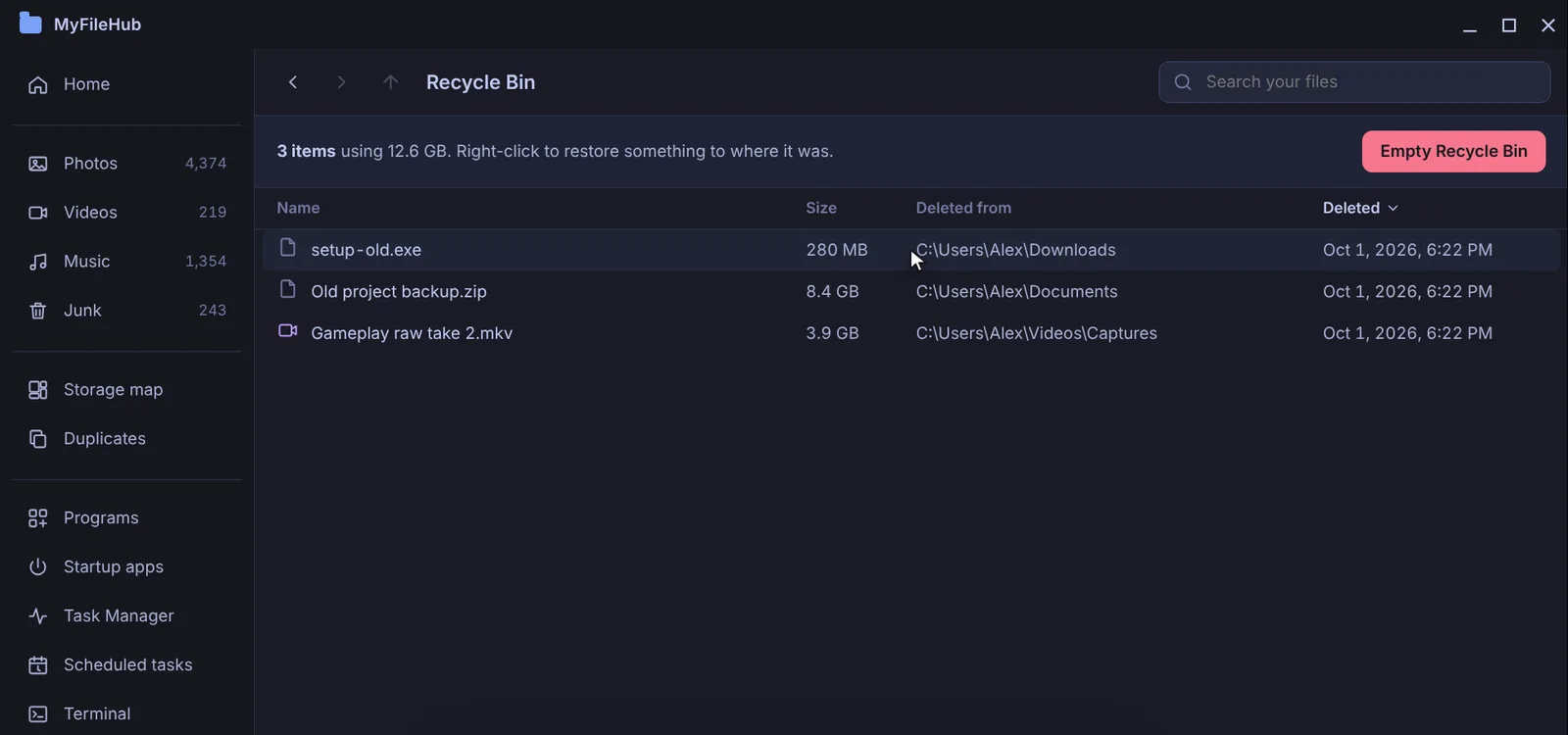
The Original location column shows where each file came from, which helps when several files have similar names.
Files that skip the Recycle Bin
If the file isn't there, it may never have gone to the Recycle Bin. That happens when:
- it was deleted with Shift + Delete,
- it was on a USB flash drive or memory card (removable drives have no Recycle Bin),
- it was on a network drive,
- it was too big for the Recycle Bin (Windows warns that it will be deleted permanently),
- it was deleted from the command line or by an app.
2. Check OneDrive's recycle bin
If the file was in a OneDrive folder, OneDrive keeps its own copy. Sign in at onedrive.live.com (or your work OneDrive), open Recycle bin and restore it from there. Personal accounts keep deleted items for 30 days.
3. Restore from File History or a previous version
If File History or another backup was turned on, you can get an older copy back:
- Open the folder the file used to be in.
- Right-click an empty area of the folder (or the folder itself) and choose Properties → Previous Versions.
- Pick a version from before the file was deleted and choose Open to look inside, or Restore.
If the list is empty, no backups were being made for that folder. To protect yourself next time, turn on File History in Control Panel → File History with an external drive, or keep important folders in OneDrive.
4. Last resort: a recovery tool
When a file is permanently deleted, Windows marks its space as free but doesn't erase it straight away. Microsoft's free Windows File Recovery tool (in the Microsoft Store) can sometimes bring it back. For the best chance:
- Stop using the drive as much as possible. Every new file can overwrite the deleted one.
- Recover to a different drive, such as a USB stick.
- Be realistic about SSDs. Most SSDs clear deleted data quickly (a feature called TRIM), so recovery from them often fails. It works best on hard drives and memory cards.
See where every deleted file came from
MyFileHub shows the Recycle Bin with each file's original folder and restores it with a right-click. Everything MyFileHub removes goes to the Recycle Bin first, and it can save a copy before deleting. Free for Windows 10 & 11.