 MyFileHub
Option 1: Settings
- Open Settings → Apps → Startup.
- Sort the list by Startup impact to see the apps that slow sign-in down most.
- Switch off the apps you don't need straight away.
Option 2: Task Manager
- Press Ctrl + Shift + Esc to open Task Manager.
- Select Startup apps (on Windows 10, the Startup tab).
- Select an app and choose Disable.
Settings and Task Manager change the same switches, so you can use whichever you prefer.
Option 3: the Startup folder and the app itself
Some apps add a shortcut to the Startup folder instead. Press Win + R, type shell:startup and press Enter. Removing a shortcut from that folder stops it opening at sign-in.
Many apps also have their own setting, usually called Open at login, Launch on startup or Run when my computer starts. If an app keeps turning itself back on, switch it off there too.
What's safe to turn off
- Usually fine to switch off: chat apps, game launchers, music apps, updaters for apps you rarely use, cloud storage you don't need syncing all the time.
- Leave on: your antivirus or Windows Security, and the utilities for your touchpad, audio or graphics card, which can control features you rely on.
- Not sure? Turn it off, restart, and see if anything you use is missing. You can switch it back on just as easily.
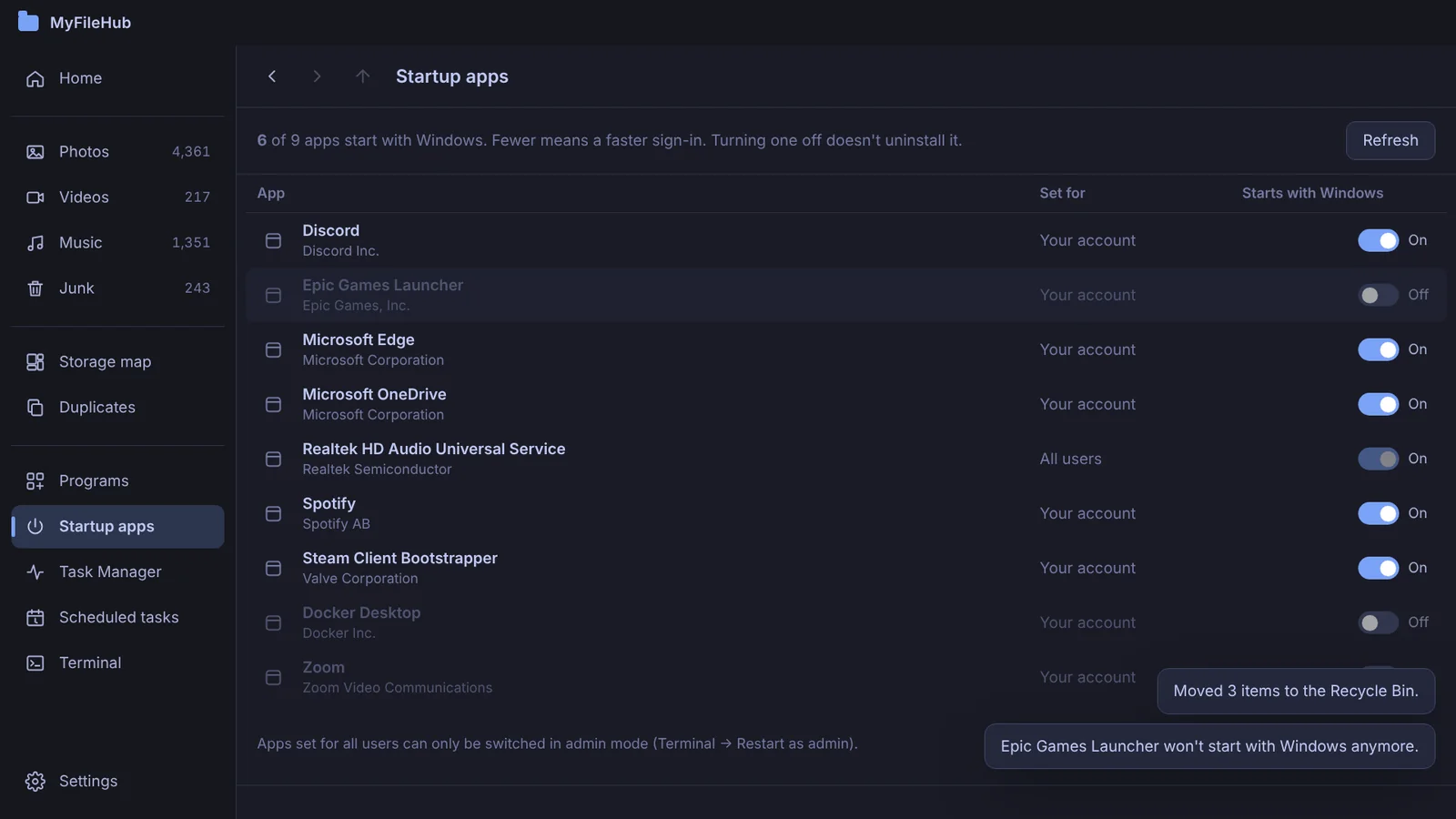
All your startup apps in one list
MyFileHub shows every app that opens with Windows, with the same on/off switches Task Manager uses, next to its PC Checkup and cleanup tools.