 MyFileHub
First: give it a moment
An app can stop responding for a few seconds while it saves a large file or loads something. If you have unsaved work in it, wait 20 to 30 seconds before forcing it closed, because force-closing loses anything unsaved.
1. Press Alt + F4
Click the frozen window once and press Alt + F4. If Windows offers Close the program, choose it.
2. End it in Task Manager
- Press Ctrl + Shift + Esc to open Task Manager.
- On the Processes page, find the app. Frozen apps show Not responding in the Status column.
- Select it and choose End task.
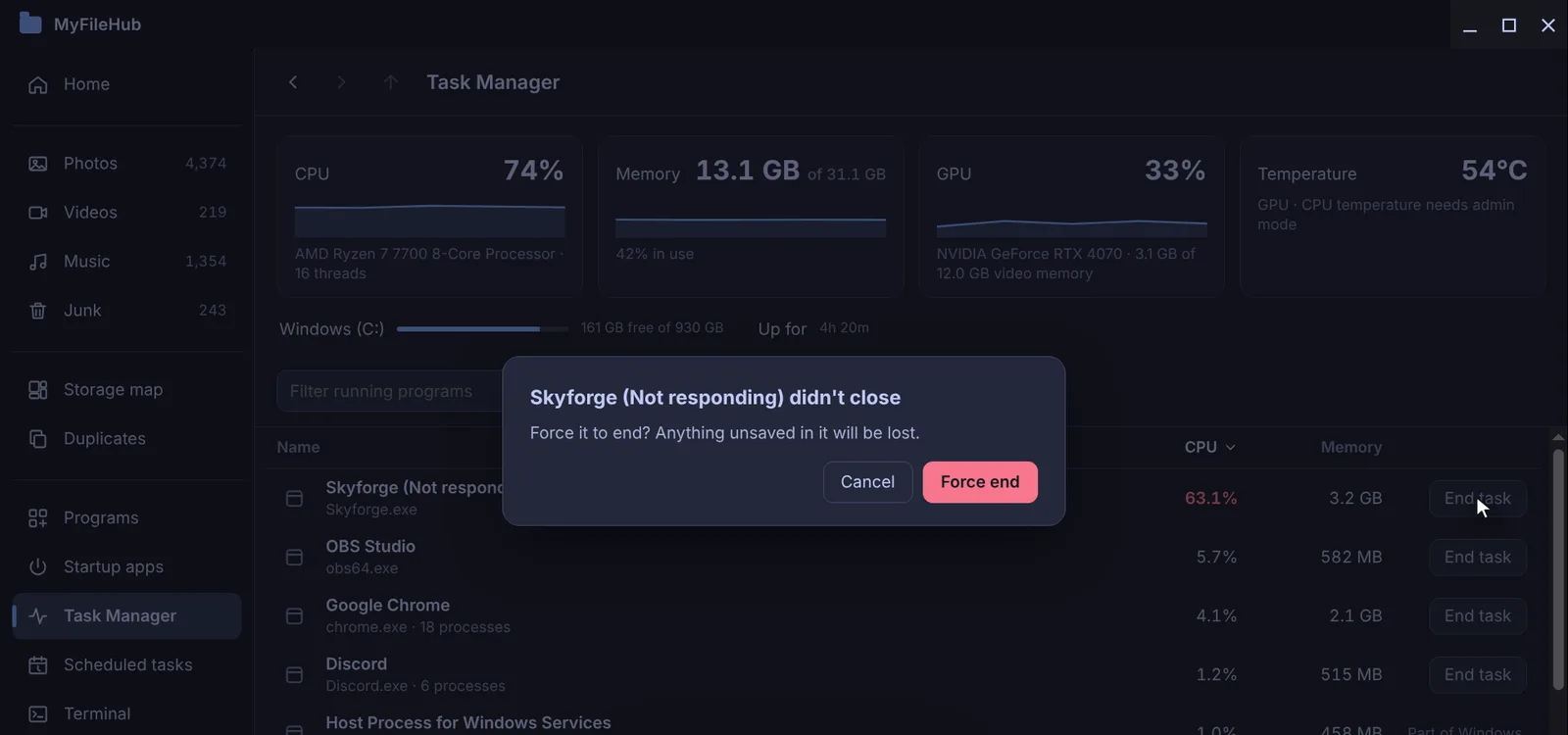
Task Manager also shows which app is using the most CPU, memory or disk, which helps when the PC is slow but nothing has obviously frozen.
3. End task from the taskbar (Windows 11)
Windows 11 can add End task to the menu you get by right-clicking an app on the taskbar. Turn it on in Settings → System → For developers → End Task (on newer versions of Windows 11 this page is called Advanced). After that, right-click the app on the taskbar and choose End task.
4. Use taskkill
If Task Manager won't end it, open Terminal and run tasklist to find the app's name (for example game.exe), then:
taskkill /IM game.exe /F
The /F forces it to close. If it says access is denied, open Terminal as administrator and try again.
5. When the whole screen is frozen
- Press Ctrl + Alt + Delete and choose Task Manager. This works even when the taskbar doesn't.
- Taskbar or desktop stuck? In Task Manager, find Windows Explorer, select it and choose Restart. Your open apps stay open.
- Black or frozen picture? Press Win + Ctrl + Shift + B to restart the graphics driver. The screen flickers once.
- Nothing responds at all? Hold the power button for about ten seconds to turn the PC off. Anything unsaved will be lost, so use this only as a last resort.
If the same app keeps freezing
- Update the app, and Windows and your graphics driver for games.
- Check free disk space: Windows and many apps misbehave when the drive is nearly full. See how to free up disk space.
- Watch CPU temperature and memory use while the app runs; overheating and running out of memory both cause freezes.
Spot and end the culprit fast
MyFileHub's Task Manager shows CPU, GPU, memory and temperature at a glance, sorts apps by what they use, and offers Force end when a frozen app won't close. Part of the MyFileHub full version.