 MyFileHub
1. See what's using the space
Before deleting anything, find out where the space went. Open Settings → System → Storage. Windows lists the biggest categories on your main drive: apps, temporary files, documents, pictures, videos and "Other". Select Show more categories to see the rest.
This tells you which of the steps below will make the biggest difference. If "Temporary files" is large, start there. If "Videos" or "Other" is large, jump to step 6. For a closer look, see how to find out what's taking up space.
2. Empty the Recycle Bin
Files you delete aren't gone; they move to the Recycle Bin and keep using space until it's emptied. Right-click Recycle Bin on the desktop and choose Empty Recycle Bin. Open it first if you want to check there's nothing you still need, because emptying it can't be undone. (Emptied it too soon? See how to restore deleted files.)
3. Remove temporary files
In Settings → System → Storage → Temporary files, Windows lists things it can safely remove, such as:
- Windows Update Cleanup: copies of old updates kept after newer ones install. Often several gigabytes.
- Delivery Optimization Files: update pieces your PC shares with others on your network.
- Temporary files and Temporary Internet Files: leftovers from apps and browsers.
- Thumbnails: small previews File Explorer rebuilds when it needs them.
Our guide to deleting temporary files covers the Temp folder, Disk Cleanup and browser caches too.
Check before you click Remove files: on some PCs this list also includes your Downloads folder. Untick it unless you really want everything in Downloads deleted.
4. Turn on Storage Sense
Storage Sense does steps 2 and 3 for you on a schedule. In Settings → System → Storage, turn on Storage Sense, then select it to choose how often it runs and how long files can stay in the Recycle Bin and in Downloads before they're removed.
5. Look at Windows' cleanup recommendations
Settings → System → Storage → Cleanup recommendations lists large or unused files, files that are already backed up to OneDrive, and apps you haven't opened in a while. Treat it as a shortlist to review, not something to accept blindly.
6. Find your biggest files
A handful of big files (game recordings, old phone backups, ISO images, installers) often use more space than everything else put together. To find them in File Explorer:
- Open File Explorer and select This PC (or the folder you want to check).
- Click in the search box and type size:gigantic to find files over 4 GB, or size:huge for files between 1 GB and 4 GB.
- Switch to the Details view and sort by Size.
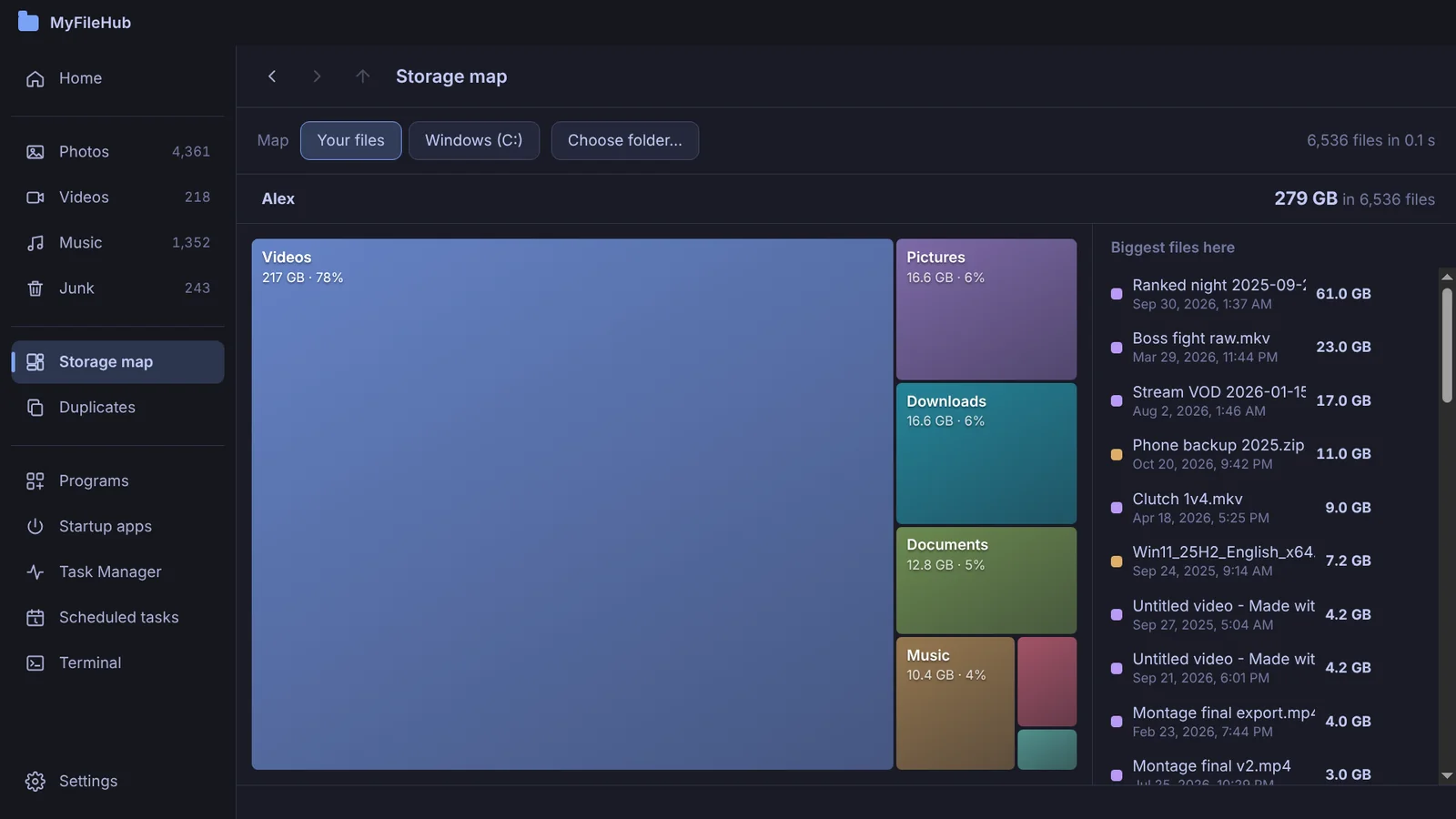
Searching a whole drive this way can be slow, and it only shows files, not which folders are the biggest overall. A storage map shows both at once: every folder as a block sized by how much it holds.
7. Uninstall apps and games you don't use
Go to Settings → Apps → Installed apps, open the Sort by menu and choose Size (large to small). Games are often the biggest items on the list. Select the … next to an app and choose Uninstall. If one won't go, see how to uninstall stubborn programs.
8. Remove duplicate files
Photos copied from a phone twice, videos downloaded again, folders copied "just in case": duplicates add up quietly. Our guide on how to find and remove duplicate files explains how to remove the extra copies without losing the originals.
9. Make OneDrive files online-only
If you use OneDrive, files can live in the cloud without taking space on your PC. Right-click a OneDrive folder and choose Free up space. The files stay visible and download again when you open them.
10. Advanced: turn off hibernation
Windows keeps a hidden file called hiberfil.sys for hibernation and Fast Startup. It can take several gigabytes on PCs with a lot of memory. If you never use hibernation, open Terminal (Admin) and run powercfg /h off. This also turns off Fast Startup; run powercfg /h on to bring both back.
Do it all in one click
MyFileHub's PC Checkup totals junk, the Recycle Bin and duplicates, and the storage map shows the rest. Free to download for Windows 10 & 11.
How much space should you keep free?
There's no exact rule, but leaving at least 10 to 15 percent of the drive free gives Windows room for updates, temporary files and the page file. Large Windows feature updates in particular need several gigabytes of free space to install.