 MyFileHub
Step 1: the Storage page in Settings
Open Settings → System → Storage. Windows shows your main drive split into categories such as Apps, Temporary files, Documents, Pictures, Videos and Other. Select Show more categories for the full list, and select any category to see what's in it.
If you have more than one drive, select Advanced storage settings → Storage used on other drives.
This is a good overview, but the categories are broad. "Other" in particular can be large and doesn't say which folders it means.
Step 2: check folder sizes
File Explorer doesn't show folder sizes in its list. To see one, right-click the folder and choose Properties; the Size line shows the total. Start with the obvious places:
- Downloads: old installers, ZIP files and videos pile up here.
- Videos and Pictures: game recordings and phone imports are often the biggest items on a PC.
- Desktop and Documents.
- C:\Users\YourName\AppData: a hidden folder where apps keep caches and data. Type %appdata% or %localappdata% in the File Explorer address bar to open it.
Step 3: search for the biggest files
In File Explorer, open This PC (or a folder) and type one of these in the search box:
- size:gigantic: files over 4 GB.
- size:huge: files from 1 GB to 4 GB.
- size:>500MB: any size you choose.
Switch to Details view and sort by Size. Searching a whole drive can take a few minutes.
The usual culprits
- Game recordings and video exports, often in Videos\Captures or a game's own folder.
- Games: modern games can take 100 GB or more each. Check Settings → Apps → Installed apps sorted by size.
- Phone backups made by iTunes or Apple Devices, which can be tens of gigabytes each.
- Virtual machines and disk images (.vhdx, .iso).
- Windows.old, a copy of your previous Windows left after a big upgrade. It's listed under Temporary files as Previous Windows installation(s) and is removed automatically after about ten days.
Hidden system files (leave these to Windows)
A few large files are hidden on purpose: pagefile.sys (extra memory), hiberfil.sys (hibernation) and System Restore points. Don't delete them by hand. If restore points use too much space, open Start, type Create a restore point, select your drive, choose Configure and lower the maximum usage.
See everything at once with a storage map
Checking folders one by one is slow. A storage map (also called a disk space analyzer) shows every folder as a block sized by how much space it uses, so the biggest ones stand out immediately, and you can click into them.
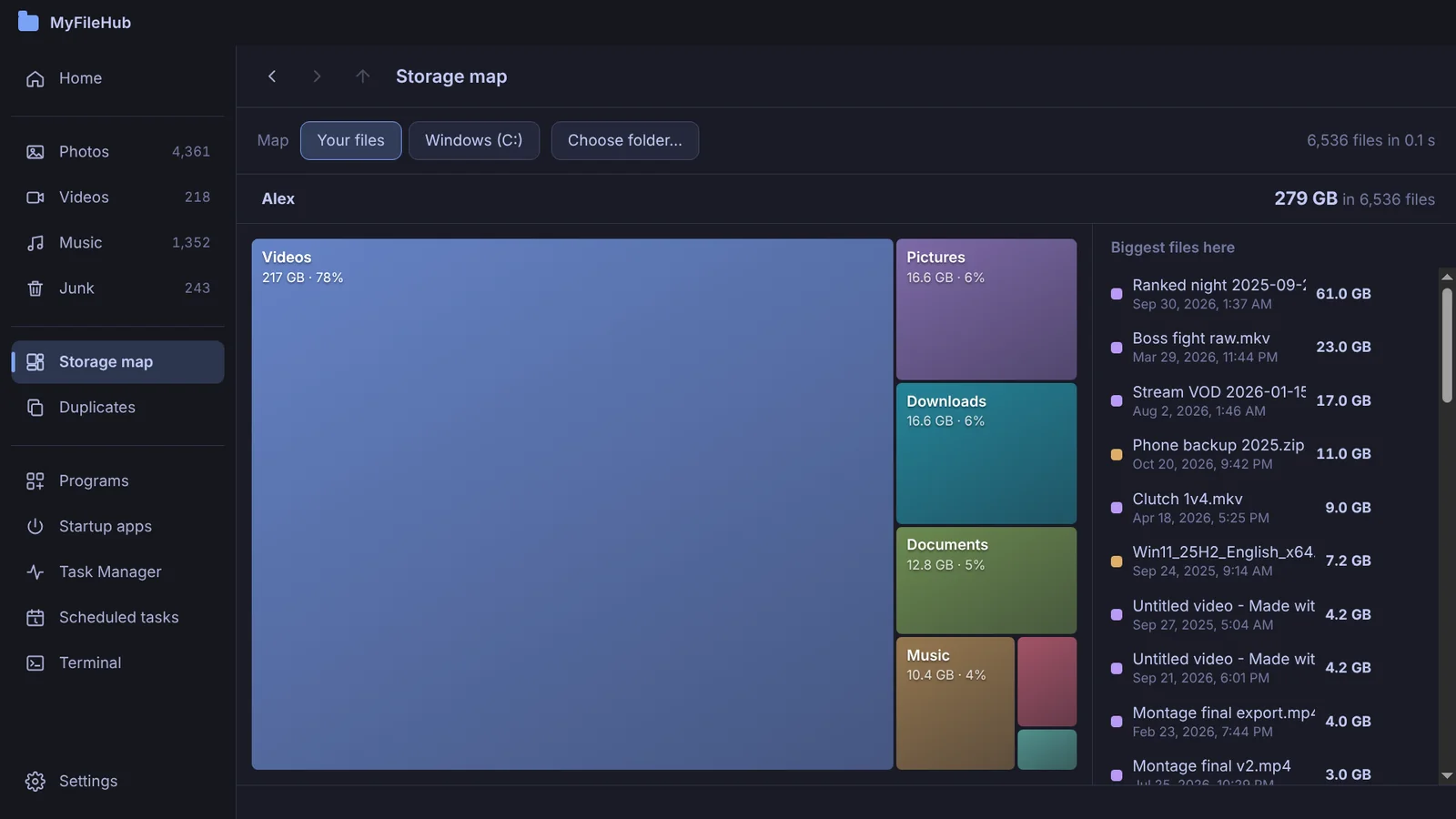
Map your drive in seconds
MyFileHub's Storage map is free: every folder as a block sized by the space it uses, the biggest files beside it, and a click to zoom in. For Windows 10 & 11.
Once you know what's using the space, our step-by-step guide to freeing up space covers what to do about it.