 MyFileHub
What counts as a temporary file?
Temporary files are working copies apps create while they run: installer leftovers, crash dumps, log files, browser caches and pieces of Windows updates. Apps are supposed to delete them afterwards, but many don't. Deleting them doesn't remove your documents, photos or settings.
Method 1: Settings (the easiest)
- Open Settings → System → Storage.
- Select Temporary files. Windows scans and lists what it can remove, with the size of each.
- Tick the categories you want to clear and select Remove files.
Windows Update Cleanup and Delivery Optimization Files are usually the biggest and are safe to remove once your PC is working normally after an update.
Watch the Downloads box. On many PCs the same list includes your Downloads folder. Untick it unless you want everything in Downloads deleted.
Method 2: empty the Temp folder by hand
- Press Win + R, type %temp% and press Enter. This opens your own Temp folder.
- Press Ctrl + A to select everything, then press Delete.
- Some files will be in use by open apps. When Windows says so, tick Do this for all current items and choose Skip.
Windows has a second Temp folder at C:\Windows\Temp. You can clear it the same way; Windows will ask for administrator permission.
Method 3: Disk Cleanup
The older Disk Cleanup tool is still included in Windows 11 and can reach a few things Settings doesn't show.
- Open Start, type Disk Cleanup and open it. Choose drive C:.
- Select Clean up system files and choose C: again. This adds Windows update leftovers to the list.
- Tick what you want to remove and select OK.
Method 4: let Storage Sense do it automatically
In Settings → System → Storage, turn on Storage Sense and select it to set a schedule. It clears temporary files on its own and can also empty old items from the Recycle Bin and Downloads after a number of days you choose.
Don't forget your browser
Browsers keep their own cache of images and pages, which can grow to several gigabytes. In Chrome or Edge, press Ctrl + Shift + Delete, choose Cached images and files, pick All time and clear it. Leave Passwords and Cookies unticked if you don't want to be signed out of websites.
What you should never delete
C:\Windows\Installer: Windows needs these files to update and uninstall your programs.C:\Windows\WinSxS: system components. Use Disk Cleanup's update cleanup instead of deleting anything here.- The Prefetch folder: Windows rebuilds it straight away, and clearing it only makes apps start slower for a while.
- Anything inside an app's own folder in Program Files: remove the app properly instead (see how to uninstall programs).
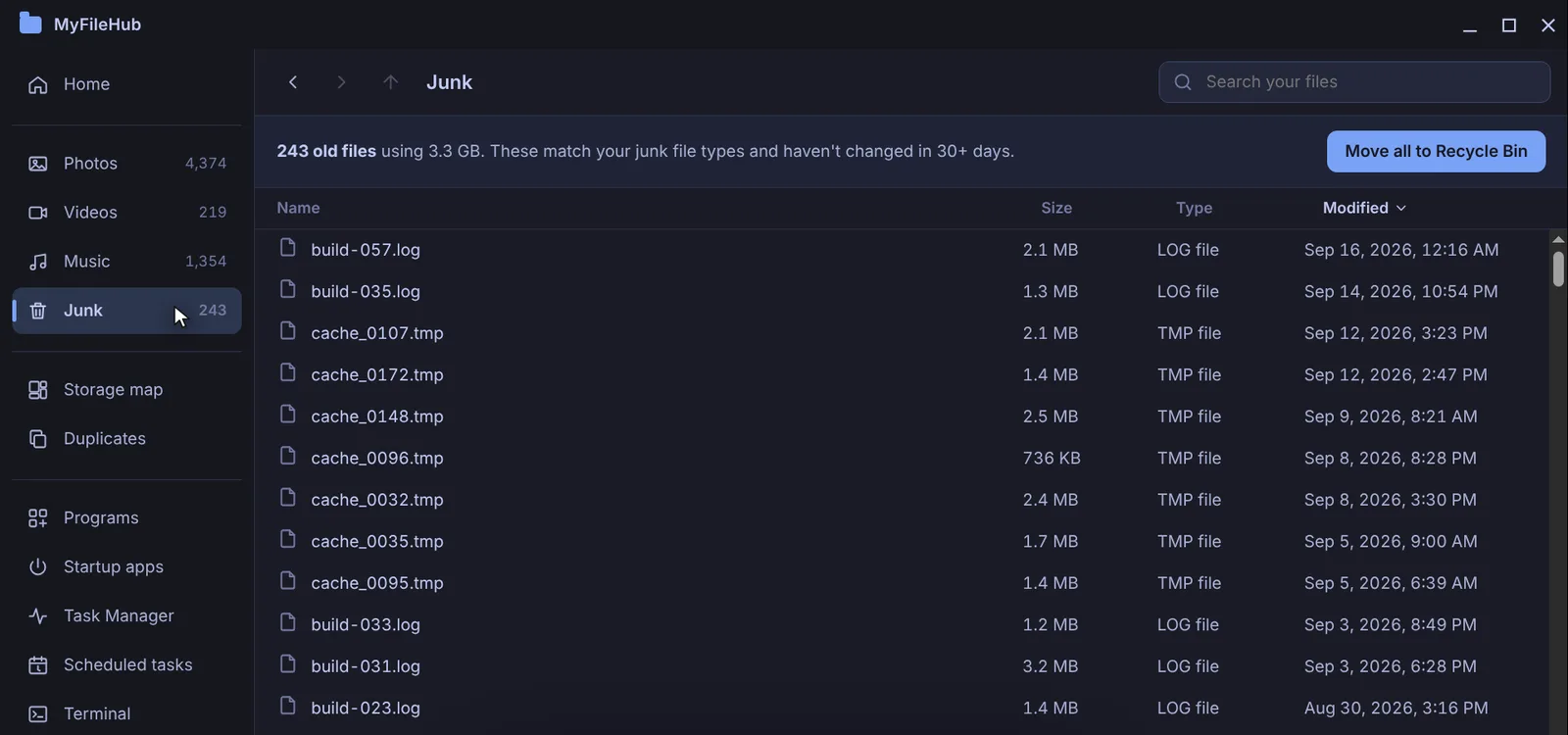
Find old junk files in one list
MyFileHub's Junk view lists temp, log, cache and crash-dump files that haven't changed in 30 days or more, with their total size. Clearing them in one click (to the Recycle Bin, so nothing is lost) is part of the full version.
How much space will this free up?
Anywhere from a few hundred megabytes to tens of gigabytes. PCs that haven't been cleaned since a big Windows update usually have the most to clear. For everything else that fills a drive, see how to free up disk space on Windows 11.