 MyFileHub
Method 1: Settings
- Open Settings → Apps → Installed apps.
- Open the Sort by menu and choose Size (large to small) to see what uses the most space.
- Select the … next to a program and choose Uninstall, then follow the program's own uninstaller if one opens.
Method 2: the Start menu
Open Start, find the app (or type its name), right-click it and choose Uninstall. For some desktop programs this opens the Control Panel list instead.
Method 3: Control Panel
The classic list still exists. Press Win + R, type appwiz.cpl and press Enter. Select a program and choose Uninstall. Some older programs only offer a Repair or Change option here.
When a program won't uninstall
- Close it first. Make sure it isn't running in the system tray, then try again. Restarting the PC often fixes "file in use" errors.
- Run its own uninstaller. Open the program's folder in
C:\Program FilesorC:\Program Files (x86)and look foruninstall.exeorunins000.exe. - Use the developer's removal tool. Antivirus suites and some game launchers have a dedicated removal tool on their website.
- Try winget. Open Terminal and run winget uninstall "Program name". Run winget list first to see the exact names.
- Reinstall, then uninstall. If the uninstaller is broken or missing, installing the same version again often repairs it.
Cleaning up leftovers
Uninstallers sometimes leave a folder behind with settings or caches. After uninstalling, you can check these places for a folder with the program's name:
C:\Program FilesandC:\Program Files (x86)- %appdata% and %localappdata% (type them into the File Explorer address bar)
Only delete a folder when you're sure it belongs to the program you removed. Skip "registry cleaners": the space they save is tiny and they can break other apps.
What you should leave installed
- Microsoft Visual C++ Redistributable and .NET runtimes: other programs depend on them, even though they look like clutter.
- Microsoft Edge WebView2 Runtime: many apps use it to show their screens.
- Drivers and utilities for your graphics card, audio, touchpad or chipset.
- Anything from your PC's manufacturer you're not sure about. Look it up first; some control battery charging, fan profiles or keyboard keys.
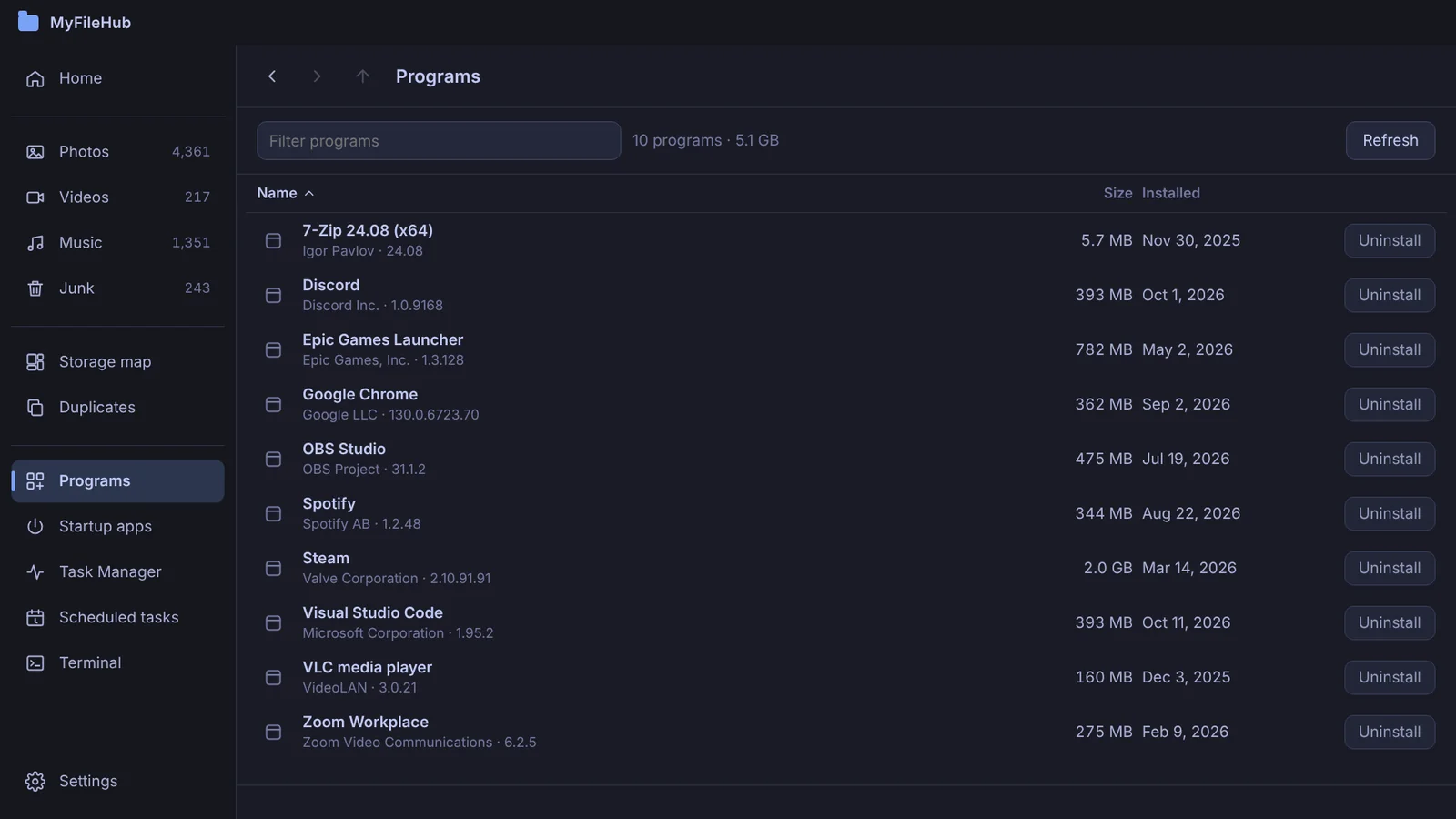
Every program, sorted by size
MyFileHub lists your installed programs with their size and install date, biggest first, and uninstalls them with one click. Programs is part of the MyFileHub full version.
Uninstalling is one of the best ways to win back space. For the rest, see what's taking up space on your PC.