 MyFileHub
Where photos usually end up
- Pictures, including Camera Roll and Screenshots.
- Downloads: images saved from email, websites and messages.
- Desktop and Documents.
- OneDrive folders, if you use OneDrive backup.
- Folders created by phone imports, often named with a date.
- Chat apps' download folders, such as WhatsApp or Telegram Desktop.
- Other drives and old backup folders.
Find every photo with one search
- Open File Explorer and go to C:\Users\YourName (your user folder). Searching here finds your photos without thousands of icons and images that belong to apps.
- In the search box, type kind:=picture and press Enter.
- Switch to Details view and sort by Date modified or Size. Use Large icons view to see thumbnails.
- Repeat on other drives (for example D:) if you keep files there.
To look for one type only, search for it by extension, for example *.heic, *.png or *.jpg.
Speed up searches by indexing everything
Windows only indexes some folders, so searching others is slow. To index your whole PC, open Settings → Privacy & security → Searching Windows and choose Enhanced. The first index takes a while; searches are much faster after that.
See them all in the Photos app
The Photos app shows your Pictures folder by default. To include other places, open Photos, select Folders and add the folders where your photos are. They then appear together in the gallery, sorted by date.
iPhone photos (HEIC) won't open?
iPhones save photos as .heic files. Windows opens them with the free HEIF Image Extensions from the Microsoft Store, which is already installed on most PCs. If thumbnails don't show, install or update it.
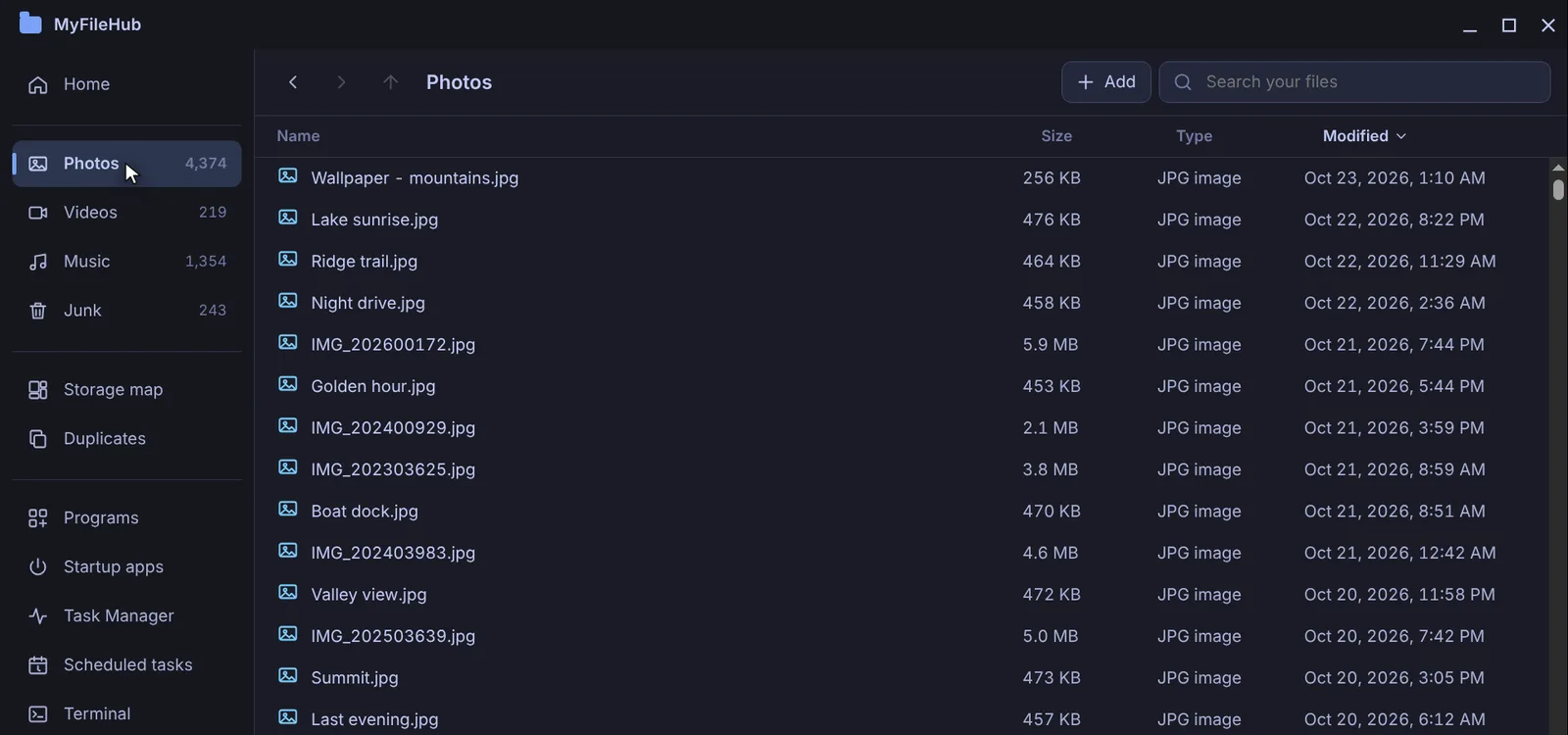
Every photo, in one place
MyFileHub's Photos view gathers every photo from Pictures, Downloads, the Desktop and any folder you add, with one-click viewing and zoom. Free for Windows 10 & 11.
Found the same photos in several places? Our guide on removing duplicate files safely explains how to clear the extra copies without losing the originals.