 MyFileHub
Create a basic task
- Open Start, type Task Scheduler and open it.
- In the Actions panel on the right, choose Create Basic Task.
- Give the task a name you'll recognize, such as Weekly backup, and select Next.
- Choose when it runs: Daily, Weekly, Monthly, One time, When the computer starts or When I log on. Set the time and days on the next screen.
- Choose Start a program, then Browse to the program, script or batch file.
- Select Finish.
Your task appears in Task Scheduler Library. Right-click it and choose Run to test it straight away.
Running a PowerShell script
Task Scheduler can't run a .ps1 file directly. In the Start a program step:
- Program/script: powershell.exe
- Add arguments: -ExecutionPolicy Bypass -File "C:\Scripts\backup.ps1"
Batch files (.bat) can be chosen directly. If a script uses relative paths, fill in Start in with the script's folder.
Settings that stop tasks from silently not running
Right-click your task and choose Properties:
- Conditions → Start the task only if the computer is on AC power is ticked by default. On a laptop running on battery, the task just doesn't run. Untick it if it should run anyway.
- Conditions → Wake the computer to run this task: tick it if the PC is usually asleep at the scheduled time.
- Settings → Run task as soon as possible after a scheduled start is missed: catches up if the PC was off.
- General → Run whether user is logged on or not: needed for tasks that should run when nobody is signed in. Windows asks for your password, and the program runs without a visible window.
- General → Run with highest privileges: only for programs that need administrator rights.
Check that it worked
Select the task in Task Scheduler Library and look at Last Run Result. The operation completed successfully (0x0) means it ran. Anything else is an error code from the program; the History tab shows more detail.
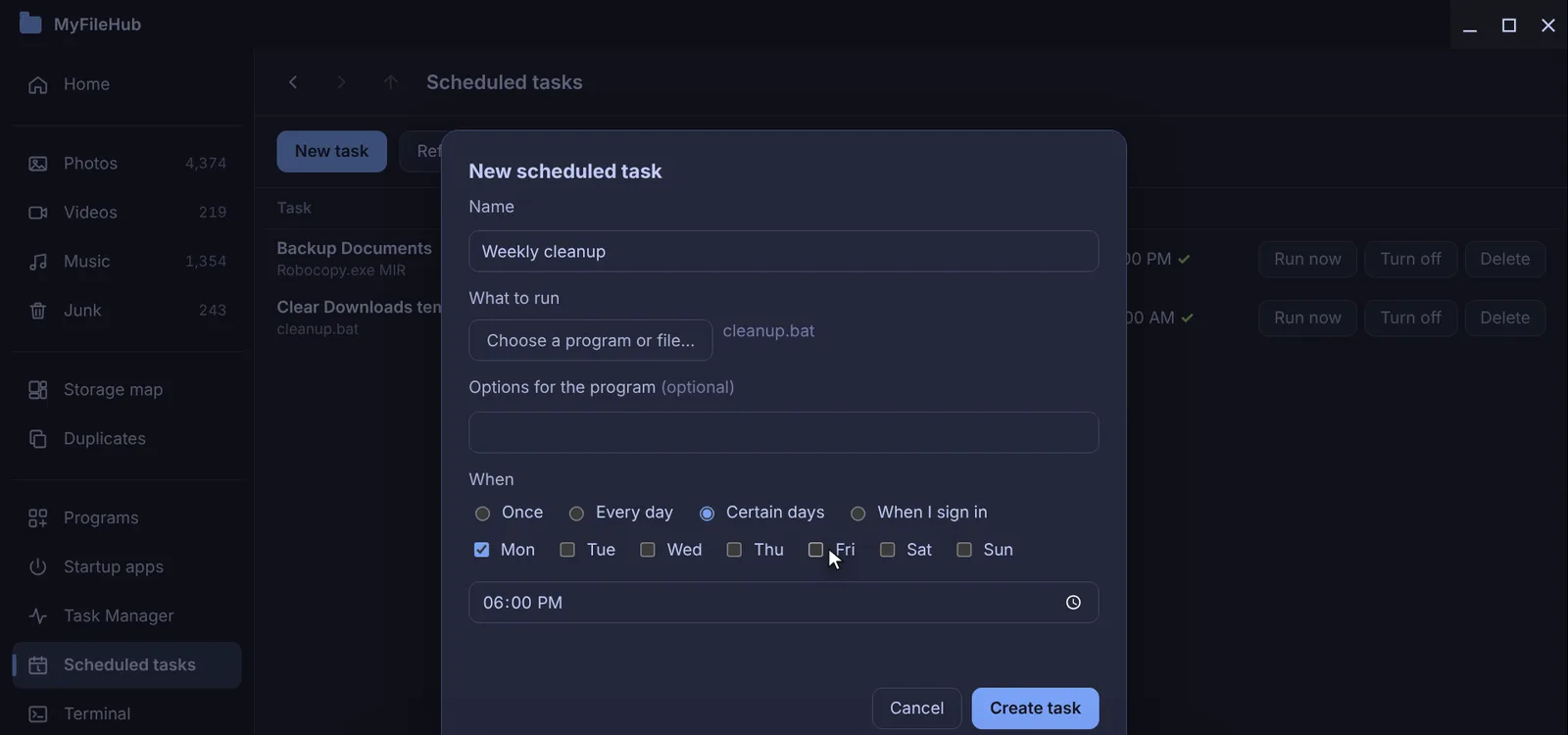
Scheduled tasks without the clutter
MyFileHub's Scheduled tasks page asks three things: a name, what to run, and when (once, daily, certain days or at sign-in). It shows when each task runs next and how its last run went, and the tasks keep running when MyFileHub is closed. Part of the MyFileHub full version.
Want something to open every time you sign in instead? It's simpler to manage it as a startup app; see how startup apps work.